.png)
How to Connect Social Media Accounts
Introduction
This guide explains how to connect your social media accounts to PostAutoPilot for content publishing and management.
1. Navigate to Accounts
- From the dashboard, locate the main menu
- Click on Accounts
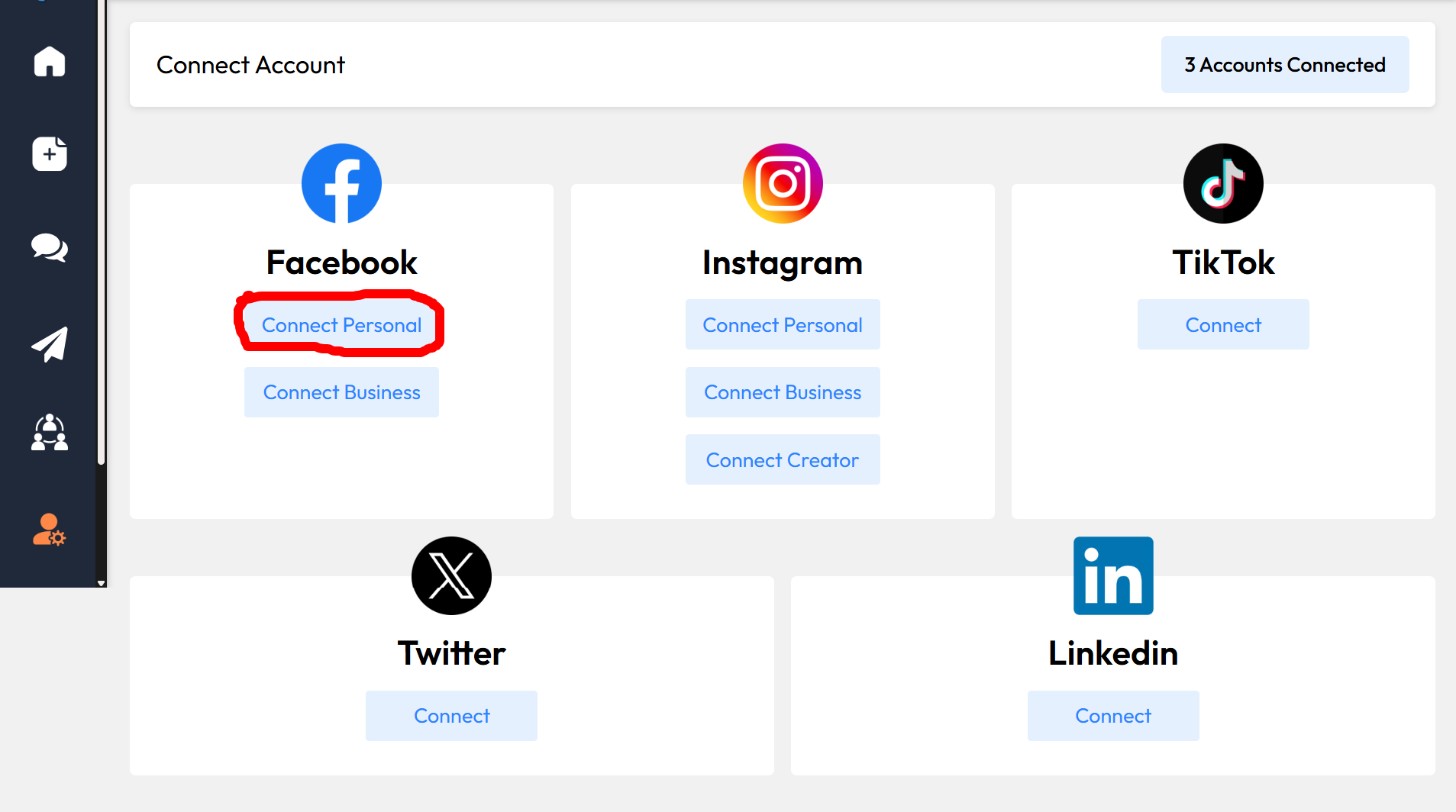
- Select Connect Account
2. Choose Account Type
You will be prompted to choose between:
- Connect Business Account
- Connect Personal Account
3. Connecting Business Accounts (AutoPilot)
Business accounts allow posts to be published automatically without user intervention.
Supported platforms include:
- Facebook Business
- Instagram Business
- Instagram Creator
- X
- TikTok
Steps:
- Click Connect Business Account
- Select your preferred platform
- A login window will appear
- Enter your social media credentials
- Grant the required permissions
- Your account will be connected successfully
4. Connecting Personal Accounts (Co-Pilot)
Personal accounts use Co Pilot, where posts are prepared and sent to your app for approval before publishing.
Supported platforms include:
- Facebook Personal
- Instagram Personal
Steps:
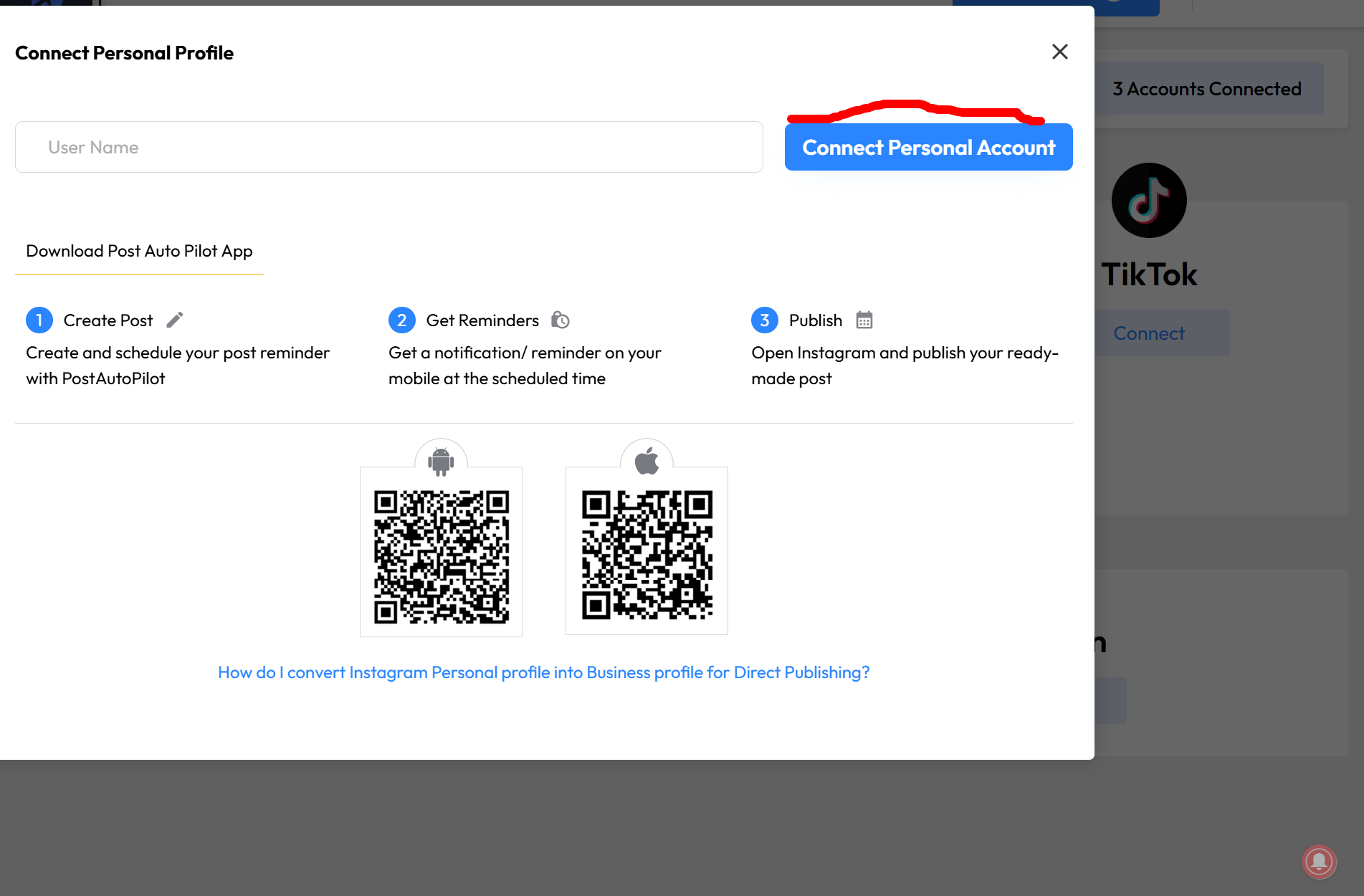
- Click Connect Personal Account
- Select your preferred platform
- A login window will appear
- Enter your social media credentials
- Grant the required permissions
- Your account will be connected
5. Important Notes
- Ensure you are logged into the correct social media account before connecting
- You may be asked to grant permissions during the connection process
- For security reasons, credentials are entered directly through the platform’s login window
Conclusion
Connecting your accounts allows you to manage and publish content efficiently across multiple platforms using PostAutoPilot.
After “Navigate to Accounts” → Accounts page
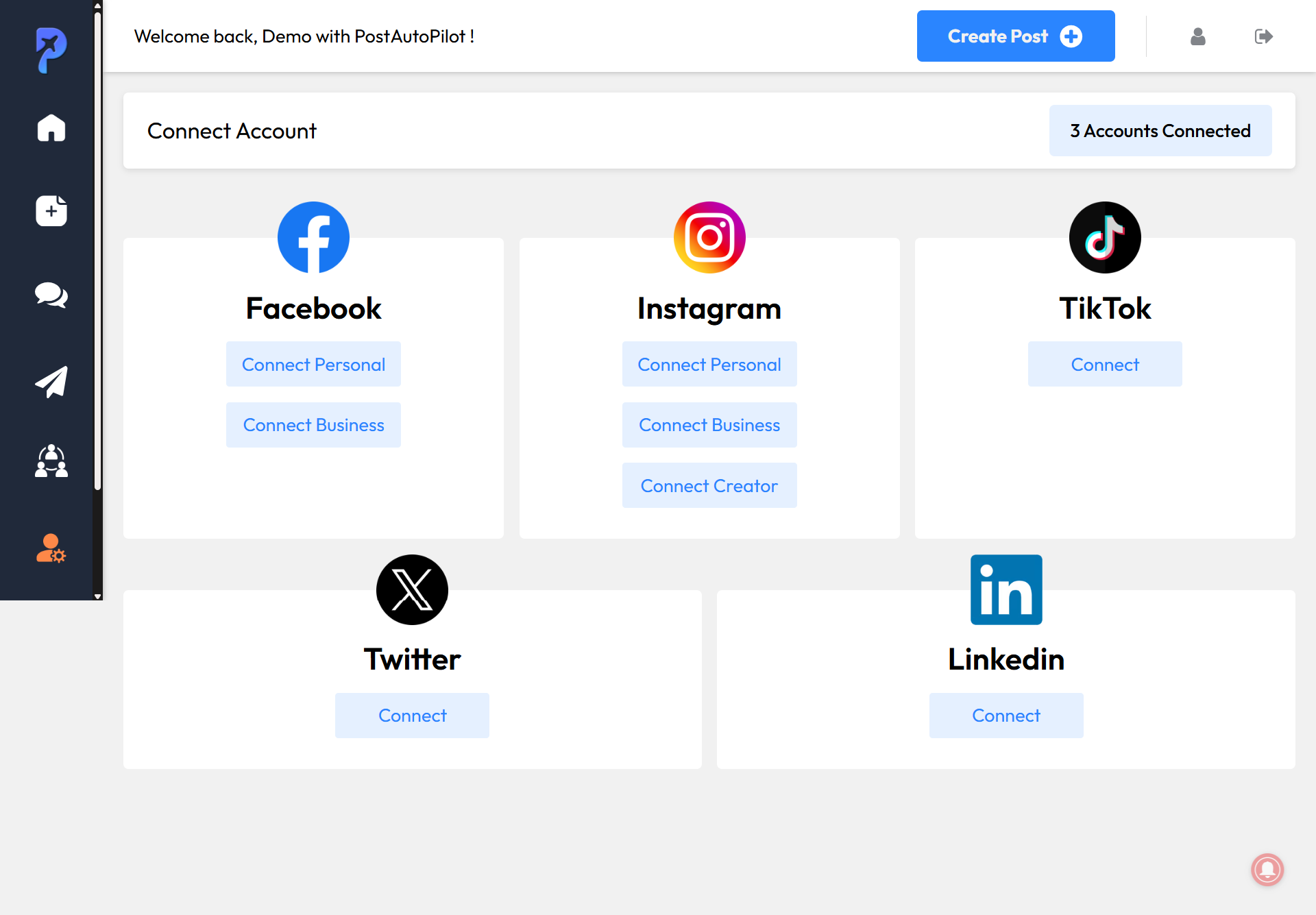
After “Choose Account Type” → Business vs Personal
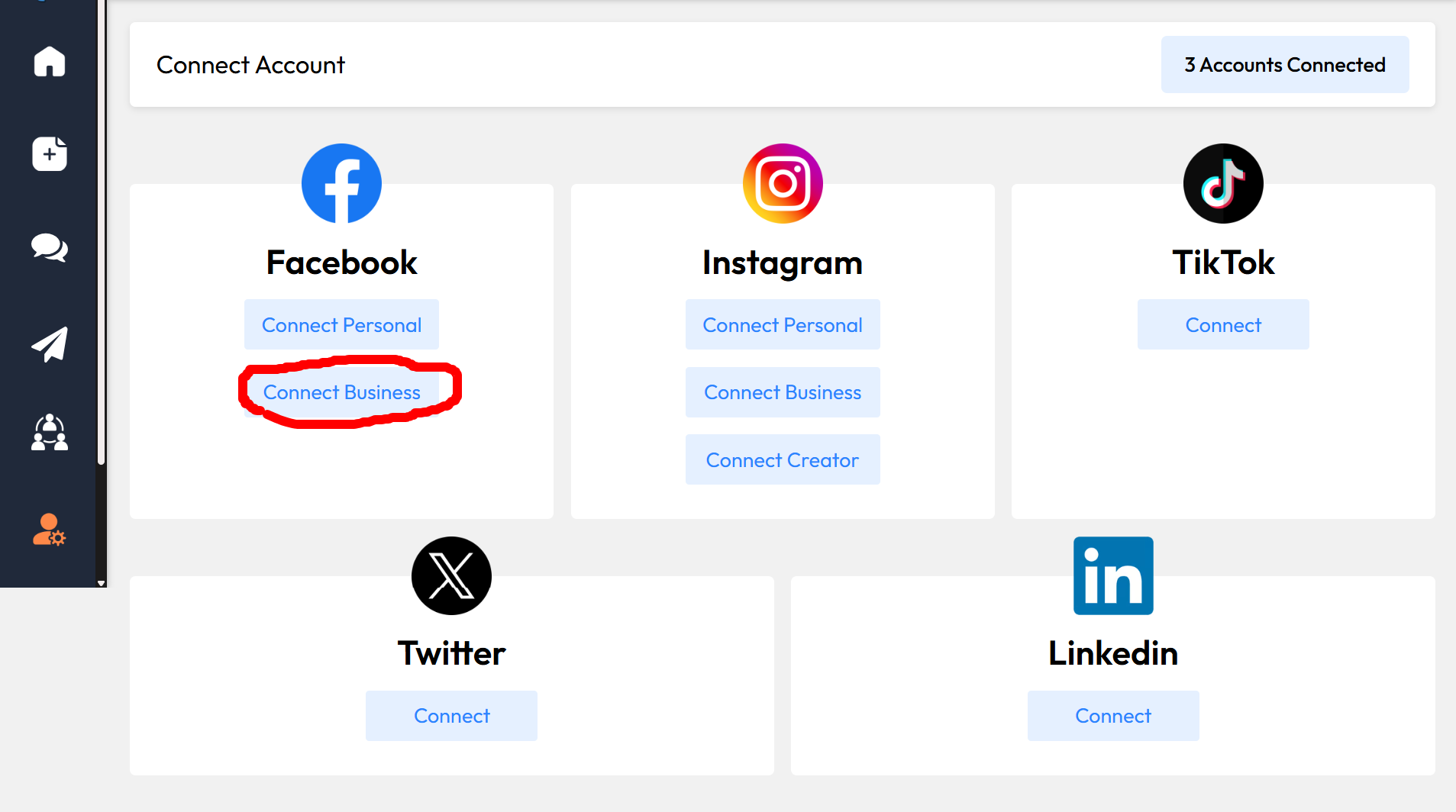
Under Business → login popup screenshot
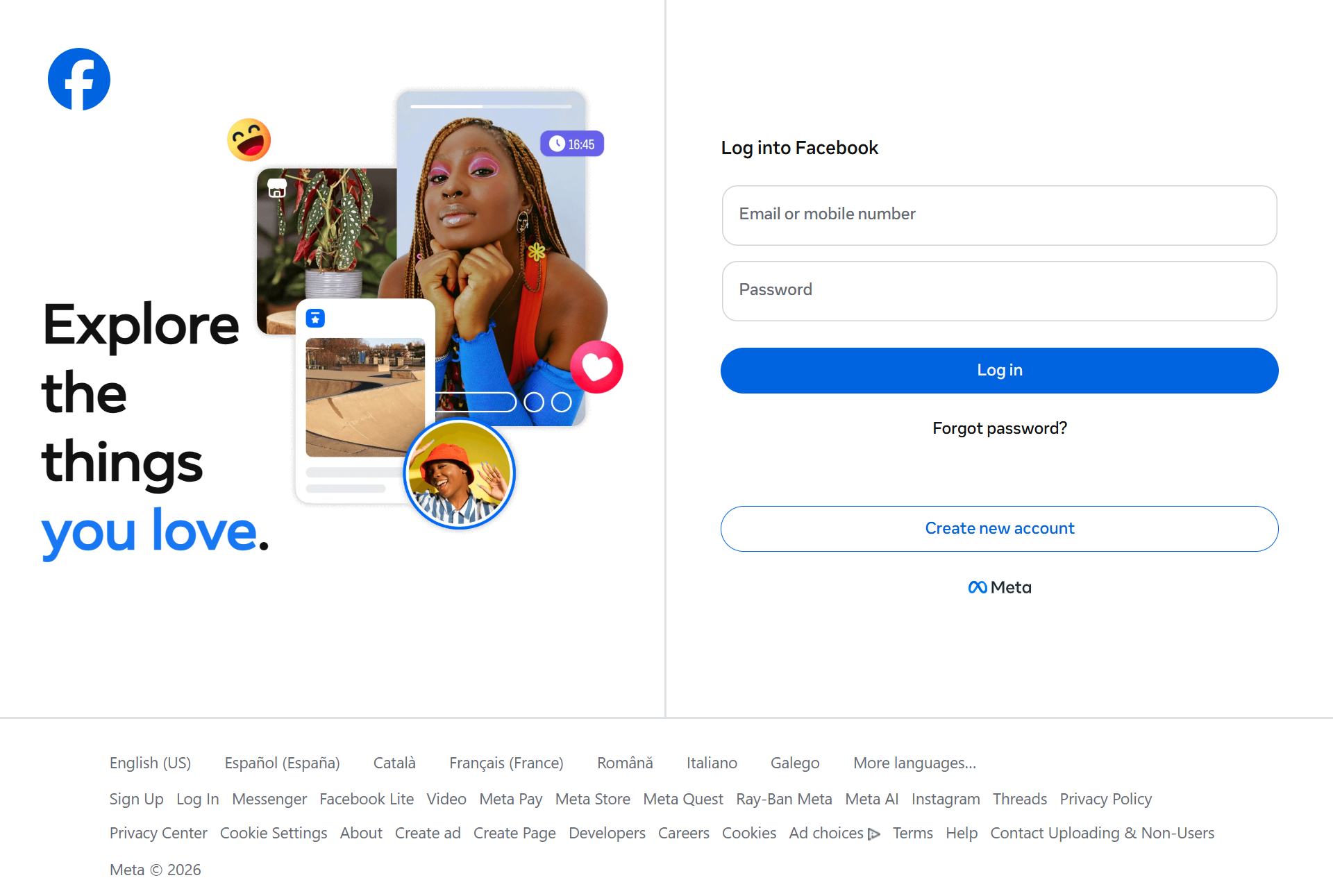
After “Choose Account Type” → Business vs Personal
Under Personal → login popup screenshot